A few years ago, I packed my Mac mini for a trip. Small, light, dead simple to throw into a backpack.
What I completely forgot to pack was a keyboard and a mouse.
So there I was in a room with a perfectly capable machine and zero ways to actually use it. I remember staring at my iPhone sitting right next to it thinking: why can’t this phone just be my trackpad and keyboard?
Back then, the thought stayed just a thought. Building a low-latency native iOS app with a macOS companion daemon felt like a three-week rabbit hole I didn’t have time to fall down. The App Store had a few dusty utilities, but they all felt clunky: ad-stuffed interfaces, microscopic buttons, and settings panels that felt designed in 2011. So I put the idea away.
The couch, the bed, and local AI
Fast forward to recently. The Mac mini has had a massive comeback—lately, half my feed is people running local AI models, home labs, or media hubs off these little silver boxes.
I use mine constantly, but to be completely honest: I’m lazy.
I don’t always want to sit upright in an ergonomic chair at my desk just to run a terminal command, trigger an AI script, or switch an app. Sometimes I just want to slump into the sofa or lie on my bed across the room. The monitor is visible, the Mac is humming, but getting up just to drag a heavy mechanical keyboard and mouse across the room feels ridiculous.
I didn’t want remote desktop mirroring. Squinting at a scaled-down 4K desktop on an iPhone screen is a miserable experience, and it destroys your phone’s battery. I didn’t need the pixels on my phone—the screen across the room already had them. I just needed the inputs: my thumb as the cursor, a keyboard when I need to type a quick prompt, and a clean way to kick off my Mac apps.
The itch came back, and this time I had a free Sunday.
Building it in 24 hours
GlassPad went from empty Xcode project to working on my devices in a single day.
If you told me a few years ago that I’d write a two-sided native Apple ecosystem app in one Sunday, I would have laughed. But using modern AI agents as pair programmers completely shifted the math. The tedious boilerplate—setting up the local Bonjour discovery service, serializing touch packets over local sockets, and building out standard SwiftUI sheets—was handled in minutes rather than hours.
That freed me to spend my Sunday on the only part that actually matters: how the glass feels under your thumb.
Getting the physics right
Making a phone send (x, y) coordinates to a Mac is trivial. Making it feel like a real trackpad is not.
If a cursor has even 20 milliseconds of lag, or if dragging feels linear instead of momentum-based, your brain immediately rejects it. A laggy trackpad is worse than no trackpad.
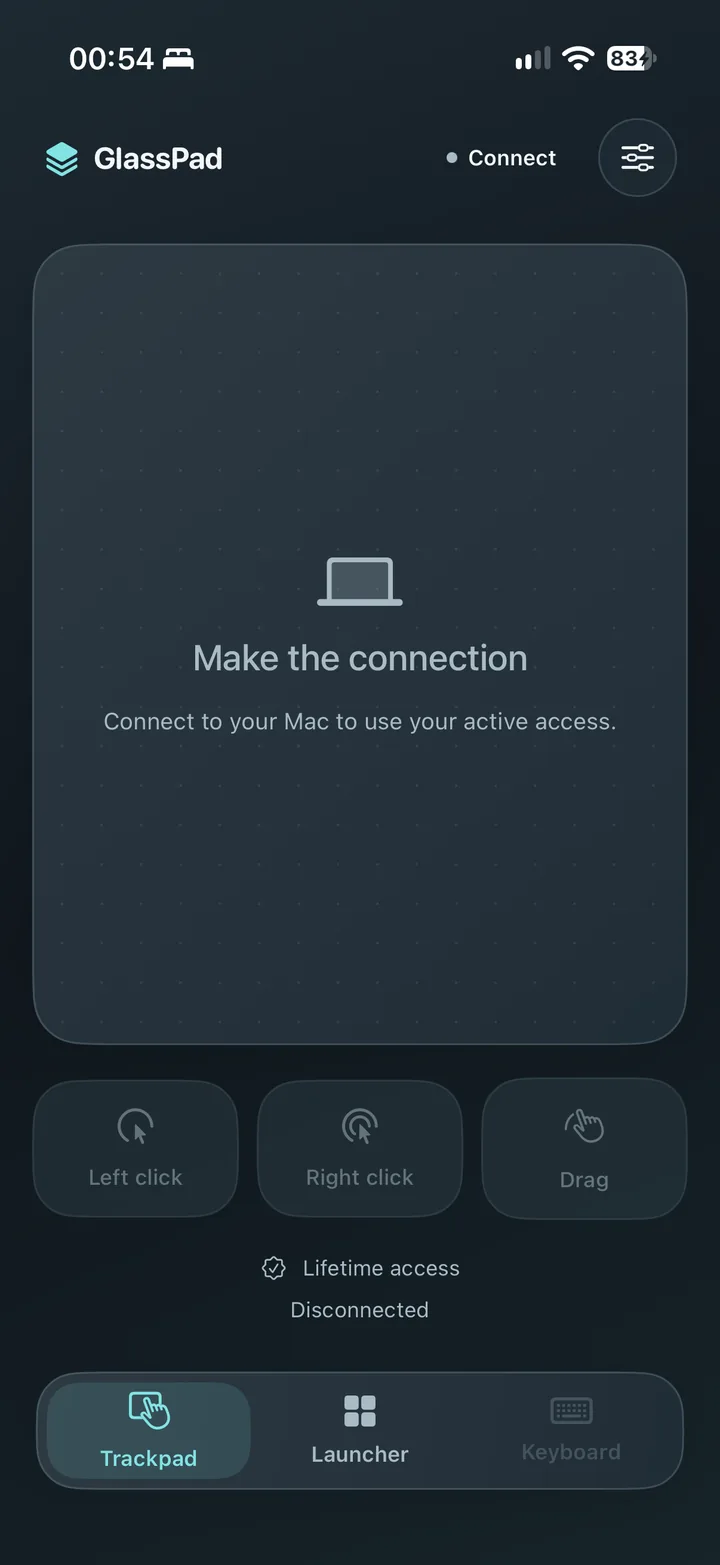
Most of my day went into tuning the touch delta curves and local network transport so that flicking your thumb across the glass feels instantaneous. One finger glides the pointer, two fingers catch macOS native momentum scrolling, and a dedicated thumb zone lets you click and drag without finger acrobatics.
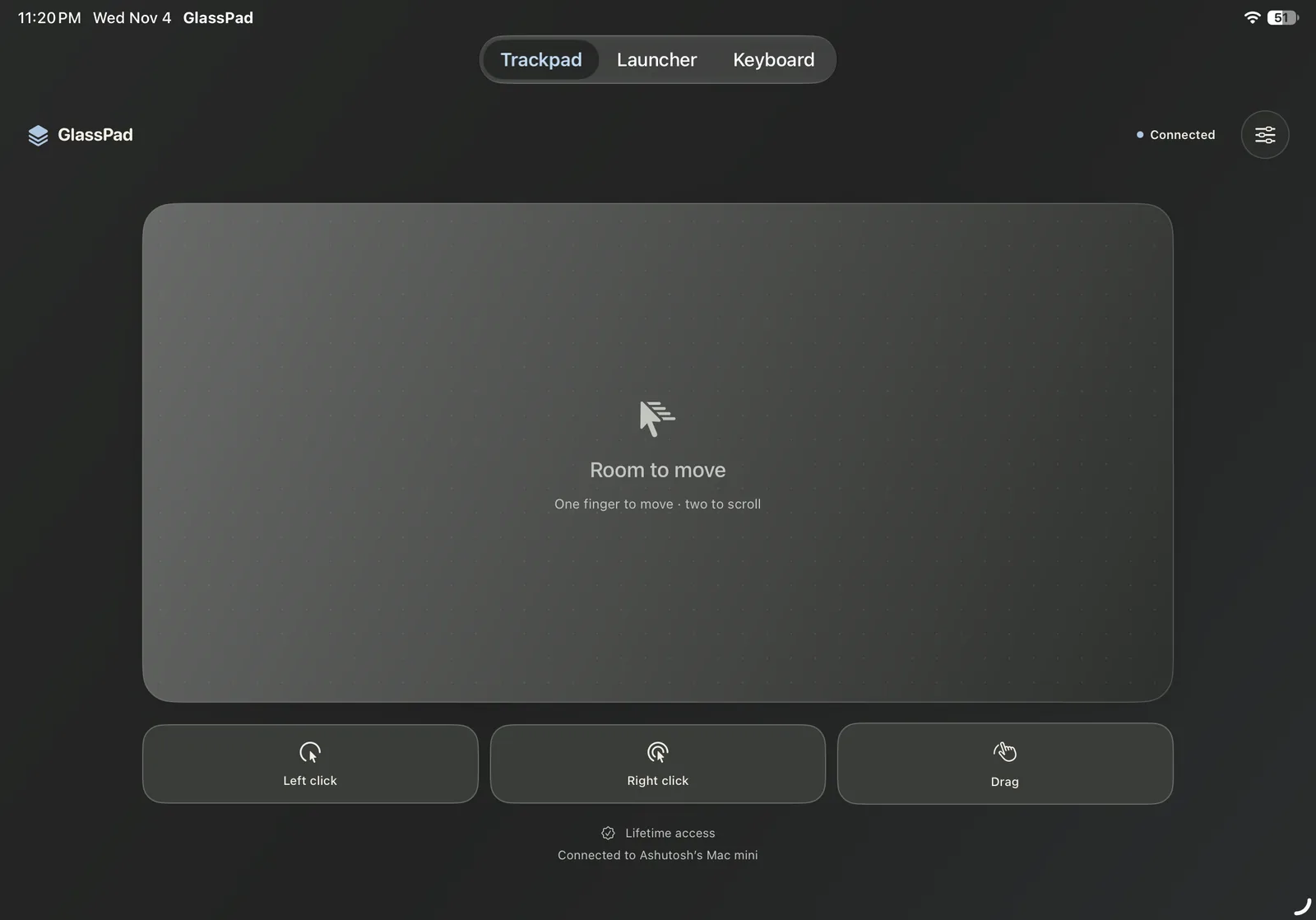
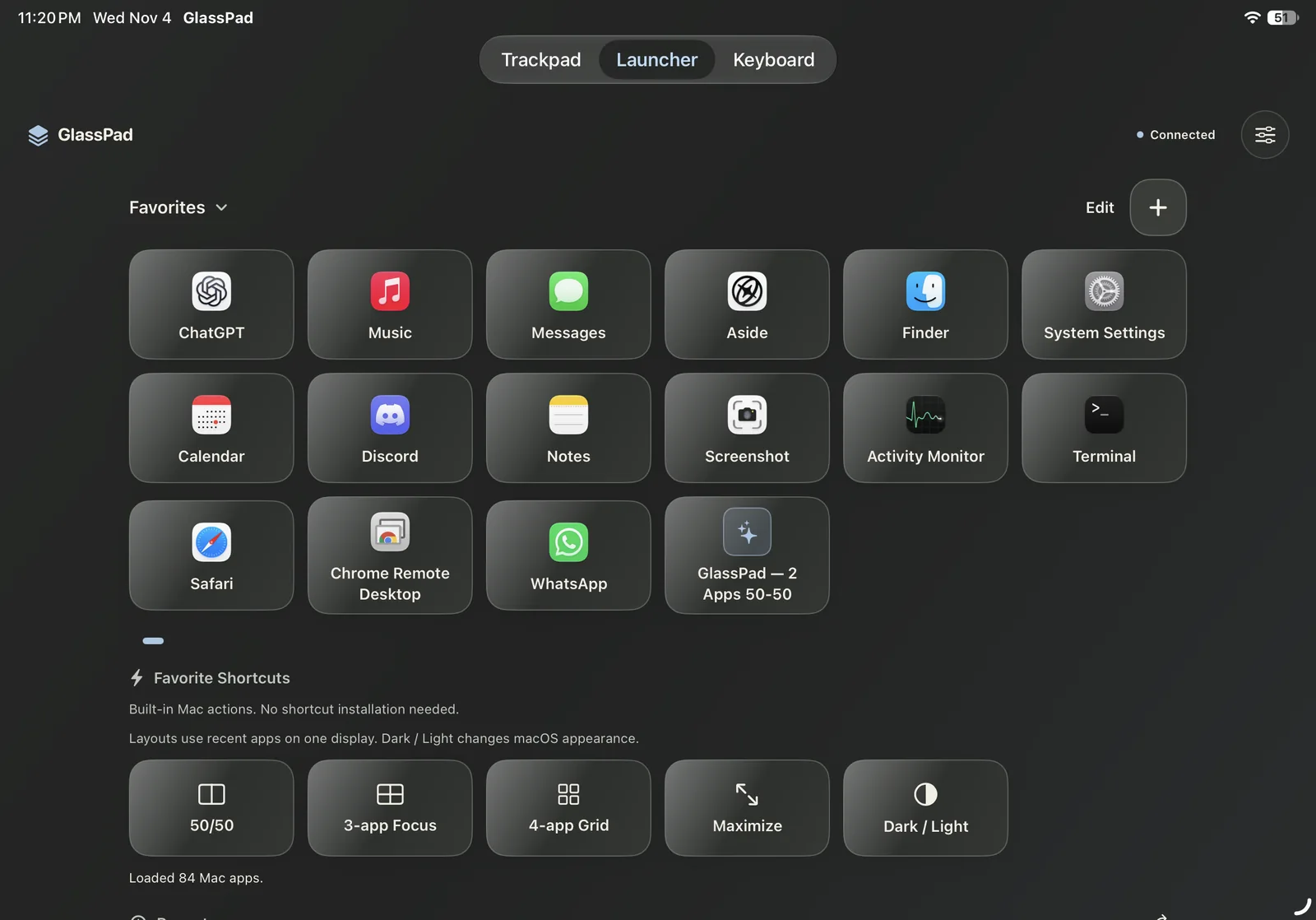
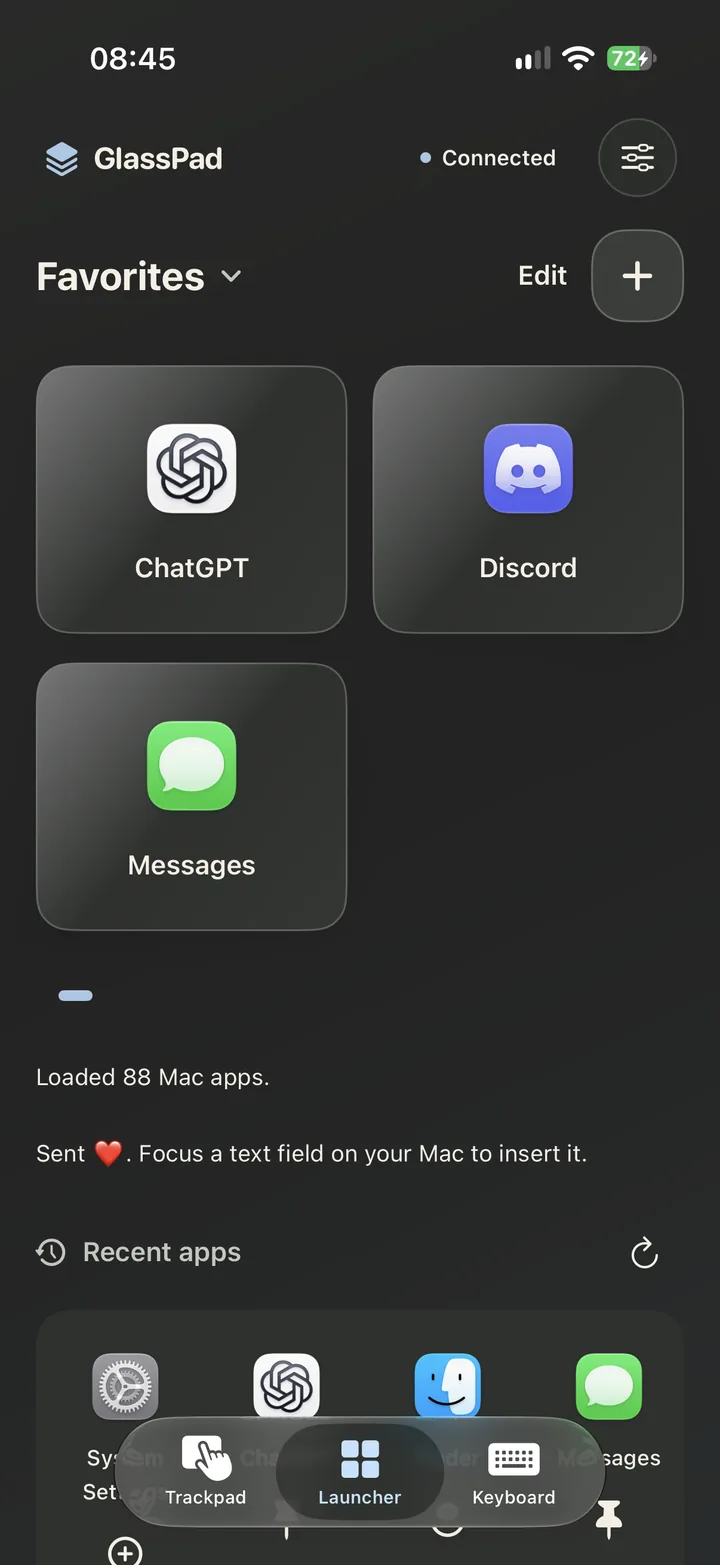
Once movement felt tight, I built the feature I personally wanted most: the launcher. GlassPad talks to your Mac and pulls your app library, so you can pin your daily tools and fire them up with one tap, alongside web bookmarks and Apple Shortcuts.
How I use it now
I keep an iPad on a stand next to my keyboard during the day as a dedicated control deck:
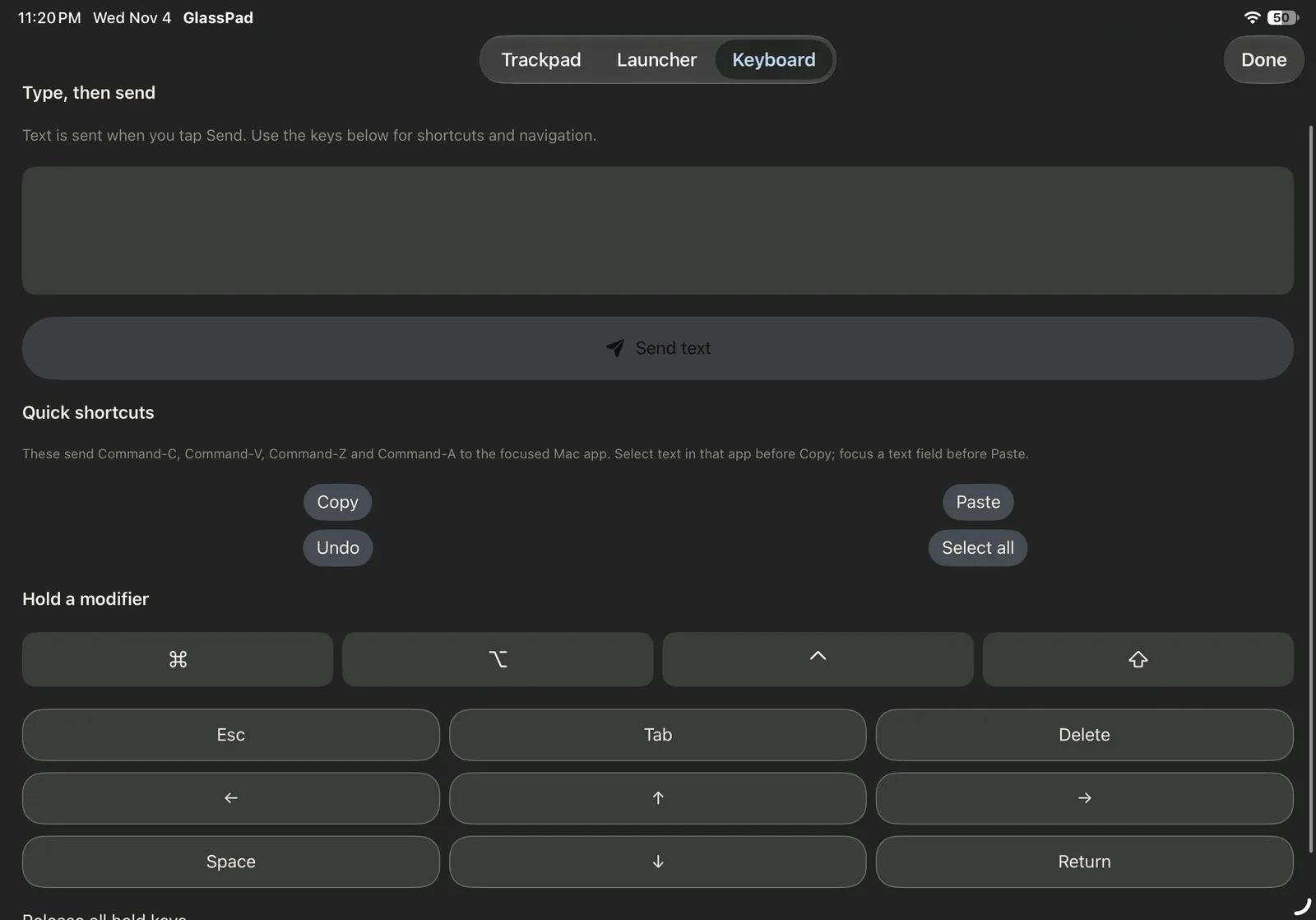
- Quick typing: When I need to paste a link or type a prompt into an AI chat running on my Mac, I just pull up the keyboard on the phone, type naturally on iOS, and hit send. It sends raw text and keystrokes directly to whatever field is active on the Mac.
- Window snaps: One tap to tile windows 50/50, trigger 3-app focus, or toggle dark mode.
- Lazy desk control: When I step away from the desk to lie down or sit on the sofa, the phone in my pocket stays connected. If a long script finishes or a build pops up, two swipes is all it takes to handle it.
Trying it out
Pairing is deliberately simple: run the companion app on your Mac, open GlassPad on your iPhone or iPad, and scan the QR code. Everything stays strictly local and encrypted on your Wi-Fi network—no cloud relays, no tracking, and no screen capture permissions required.
- Mac companion: Free, runs on macOS 14+ (both Apple Silicon and Intel).
- iPhone & iPad: Requires iOS/iPadOS 17+. Currently live in TestFlight, with the App Store launch coming right after.
- Pricing: 7-day free trial, followed by a one-time lifetime purchase. No subscriptions.
The download and TestFlight invite are over on the GlassPad site. If you’re also running a Mac mini from your bed, I’d love to hear how it fits your setup.